Email Copy
Part of Writing email copy people can use
Writing preview text that adds to the subject line
Write preview text that contributes a second detail, avoids repeating the subject and matches the email recipients receive.
Preview text should add one useful detail beyond the subject: who the email is for, what it contains, or what the reader can do next. Draft it alongside the subject. It should match the body and stay helpful even if an inbox shows only its first few words.
Give the two lines different jobs
The subject identifies the main message. Preview text answers a likely next question.
| Subject | Preview text | What it adds |
|---|---|---|
| October workshop dates are open | See the sessions and choose a suitable time. | The next step |
| Equipment-care guide: cleaning the filter | A short checklist for your next maintenance session. | The format and use |
| Your booking time has changed | Check the new time and your options if it does not suit. | What to look for |
These are invented examples, not tested messages. In the booking example, the changed time must appear clearly in the email itself; the preview cannot replace the notice.
Subject Line vs Preview Text: Roles and Examples
- Subject
- October workshop dates are open
- Preview text
- See the sessions and choose a suitable time.
- What it adds
- The next step
- Subject
- Equipment-care guide: cleaning the filter
- Preview text
- A short checklist for your next maintenance session.
- What it adds
- The format and use
- Subject
- Your booking time has changed
- Preview text
- Check the new time and your options if it does not suit.
- What it adds
- What to look for
Put the useful detail first
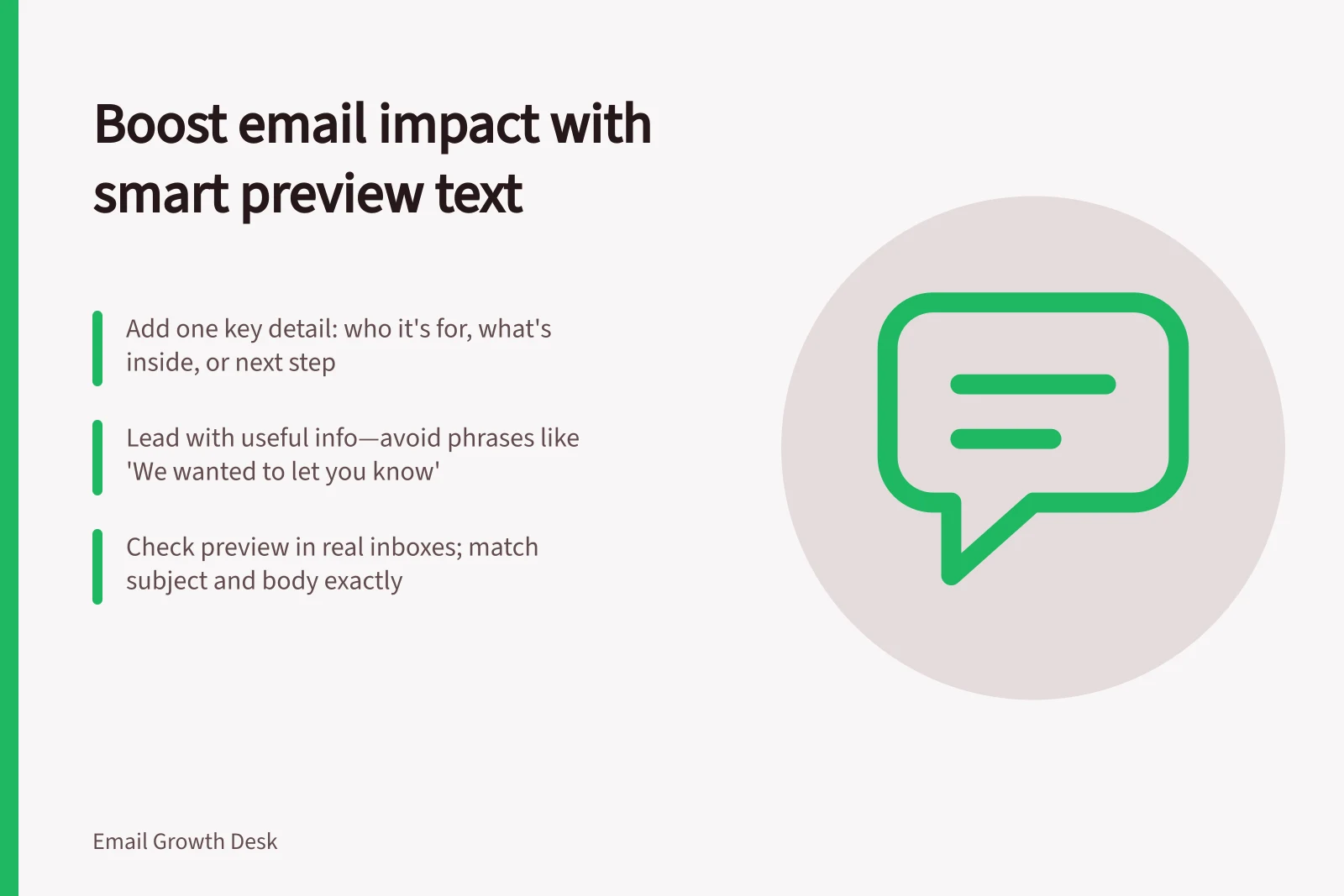
Inbox space varies by email client and view. Lead with information that helps a reader decide whether to open, not a phrase such as “We wanted to let you know”. An exact character count cannot guarantee what will appear.
A detail is useful only when it is true for the audience. “Book by Friday” needs a verified deadline and applicable time zone. A price, saving or availability claim needs checking against the final offer. If a condition changes the decision, state it near the offer in the body as well.
Read the pair aloud. If both lines say that workshop dates are open, use the preview to say where readers can find the sessions or whom the workshop suits. If the lines make competing promises, revise one of them.
Best practices for writing effective preview text
- Lead with a useful detail (not filler)Avoid phrases like 'We wanted to let you know'. Focus on action or key info.
- Ensure accuracy of claimsVerify deadlines, prices, savings or availability against the final offer.
- Match audience relevanceOnly include details that apply to the recipient (e.g., correct time zone for 'book by Friday').
- Read both lines aloudIf they repeat the same message, revise the preview to add unique value.
- Avoid conflicting promisesEnsure subject and preview don’t contradict—revise one if needed.
Check the received result
When preview text is unset, an email client may draw from the opening of the message. That can expose a utility line such as “View in browser”. Set intentional text where the sending tool permits it.
Email tools handle preview text differently. Check the sending tool’s documentation and inspect a received example in the inboxes relevant to the campaign; a completed builder field alone does not establish what recipients will see.
After an offer, subject or audience change, compare the preview with the final opening and body. Confirm that the first visible words make sense alongside the subject and that any offer detail matches the body.
How to test and verify preview text in real inboxes
- Set intentional preview textUse your email tool’s field to define preview text—don’t rely on auto-generated content.
- Check tool documentationReview how your sending platform (e.g. Mailchimp) handles preview text across clients.
- Inspect received examplesTest in real inboxes (Gmail, Outlook, Apple Mail) to see what appears.
- Compare with final bodyConfirm the preview aligns with the opening line and any offers in the email.
- Update after changesIf the subject, offer or audience changes, re-check the preview text for consistency.